Table of Contents
- Intro
- Basic Functionality
- Controls/UI
- Primary/Secondary/Inactive Instances
- Suggestions
- Bugs
- Planned Future Updates
- Tested Platforms
- Contact
- Distribution List
- FAQ
Intro
Latest version: 0.0.2
First things first: I know the current UI ain’t much (but it’s honest work). Something had to give so I focused on getting the core functionality working
That being said, I don’t think I’ll spend a massive effort on the pure aesthetics of the UI either, beyond making it look adequately nicer and easy to use. My efforts on this and future plug-ins will mostly focus on ensuring they’re useful and solve real needs for producers, engineers and musicians
Just setting the right expectations!
Phonopter is a plug-in that lets music producers and sound engineers blind test two tracks at a time in their DAW
While the tracks can be any two, it’s most useful when comparing two sources with very similar settings to try to decide as “objectively” as possible which one works best for the production
The reason for the comparison being “blind” is to help eliminate possible bias introduced by the user knowing which of the two versions they’re listening to at any given time
This means that Phonopter is useful in a wide array of scenarios: ear training, auditioning a new plug-in, working around ear fatigue, etc…
Ok, PSA done, moving on…
Basic Functionality
Key concepts to understand how Phonopter works:
- You add an instance of Phonopter in each track you want to audit
- The first instance you add is the one you use to toggle which track plays at any given time, this will be the primary
- The secondary can’t be controlled directly but it will tell you which channel has the primary it takes orders from
- If you add more instances they’ll be inactive. Further down I’ll show how to use those
- When you want to start the blind A/B test, you can deactivate the channel controls, and Phonopter will choose one of the two tracks at random to enable playback from
- You’ll still be able to switch back from one track to the other, you just won’t get any visual feedback from Phonopter about which one is playing (you should also make sure you can’t see the meters in your DAW otherwise it defeats the purpose)
- At any point you can re-enable the channel controls and see which track was unmuted at that given time
Controls/UI
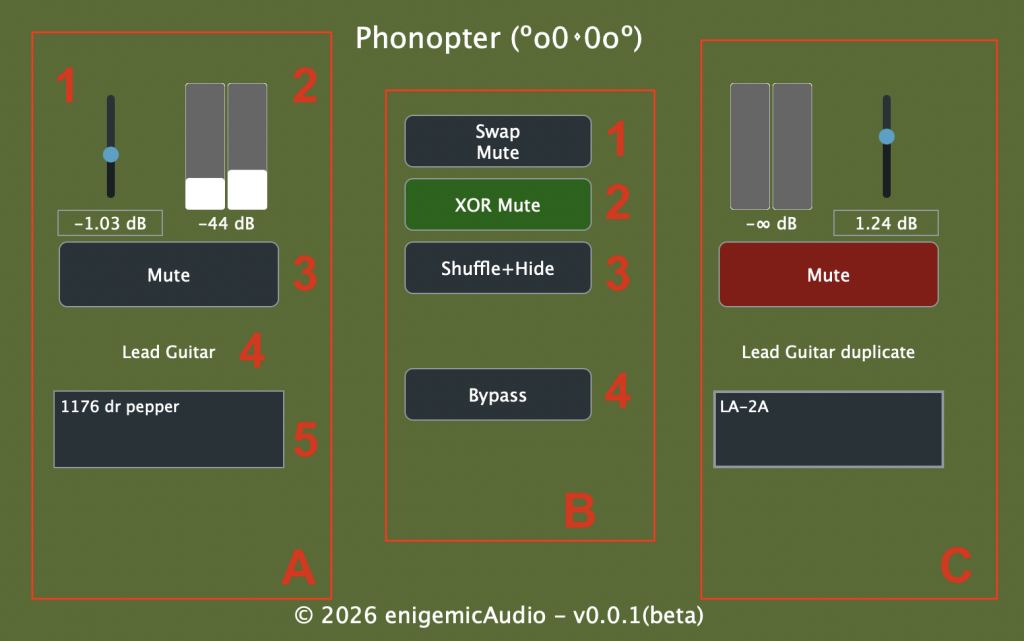
Left/Local Channel Controls (A)
This side controls the audio in the track where the instance is inserted
- Gain slider: it provides ±6 dB of gain to help level match the two tracks
- Meters: the ballistics emulate VU meters
- Mute: does what it says on the tin
- Track name: the name of the track where this instance is inserted
- Comments: free text box
Centre console (B)
- Swap Mute: if “XOR Mute” is engaged it inverts the mute states of both channels. If “XOR Mute” was off, it’ll turn it on and then, if needed, toggle the right channel to ensure one is muted and the other is playing
- XOR Mute: “eXclusive-OR” mute. If active, clicking the “Mute” button on one channel will automatically toggle the other side too so that there’s always one playing and one muted. If inactive, channel mute buttons only affect the side where they’re clicked
- Shuffle+Hide: have Phonopter randomly choose which channel will play, and disable the meters and channel controls (except the comments box). When this mode is active the button will read “Reveal” instead
- If “XOR Mute” was off, clicking “Shuffle+Hide” will also turn it on
- Bypass: what a normal bypass button does, however in the beta version this is the only way to fully disable the plug-in
This is what the primary instance looks like when playback is shuffled+hidden
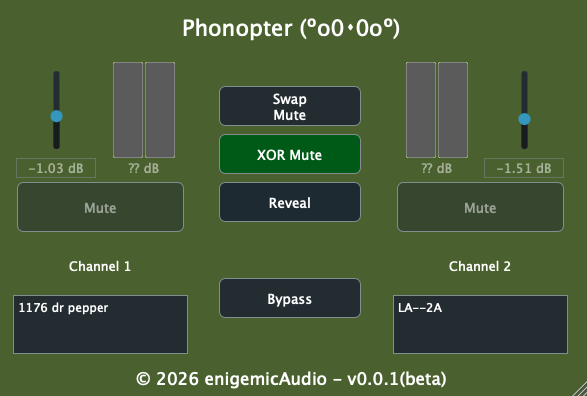
Meters, channel mute buttons and gain sliders become inactive, but you can still type in the comments box and use the centre console
Right/Remote Channel Controls (C)
Same idea as the left channel controls but these control the secondary instance of Phonopter, whatever channel it’s inserted on
One important thing to note is that when you type comments in the text box on the remote channel section, they are sent to the secondary instance
That means that if that secondary becomes the primary and starts controlling a different channel the text box will show the comments you added before from the previous primary
Primary/Secondary/Inactive Instances
This current beta version is based on a fairly rigid primary/secondary/inactive role workflow. This’ll be better in the future but for the time being this is how it works:
- The earlier you add an instance, the higher its priority is to become primary
- The non-bypassed instance you added next becomes the secondary. You now control these two tracks with the primary
- All other instances, either bypassed or which were added later are marked “inactive”
Let’s imagine these are the inserts in your session
| EQ | EQ | EQ | Channel Strip |
| Comp | Comp | Comp | Comp |
| Another EQ | Another EQ | Phonopter | Another EQ |
| Phonopter | Phonopter | Tape Sat | Phonopter |
| Channel 1 | Channel 2 | Channel 3 | Channel 4 |
For simplicity, we’ll assume you inserted the Phonopter instances in the same order as the channel numbers (but in reality you can choose the order)
By default, you would use the instance on“Channel 1” to control itself plus the instance on “Channel 2”. The other two instances would be inactive
This is what you would see in each UI:
Channel 1: (notice the track name on the right side)
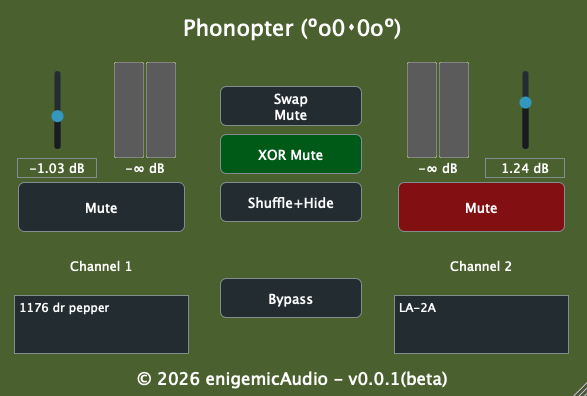
Channel 2:

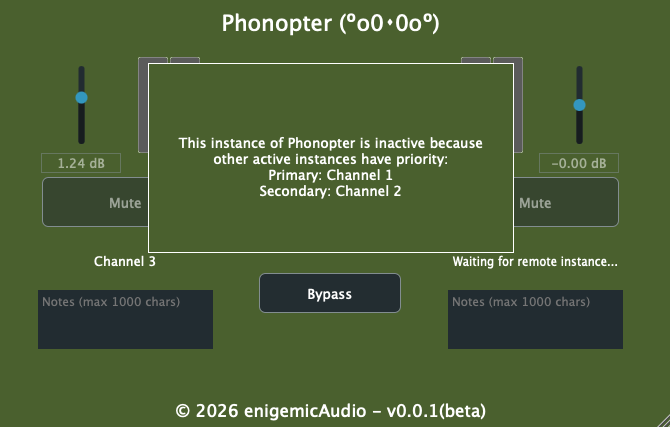
Channels 3 and 4:
If you wanted to compare other combinations, here are some examples of how you would do it:
| Channels to compare | What to do | Primary instance | State of other instances |
|---|---|---|---|
| 3 & 4 | Bypass 1 & 2 | 3, because it was added first | 1 & 2 bypassed and inactive |
| 4 & 2 | Bypass 1 & 3 | 2 (again, it was added before the one in 4) | 1 & 3 bypassed and inactive |
| 1 & 3 | Bypass 2 (bypassing 4 is not necessary) | 1 | 2 bypassed and inactive, 4 could be bypassed or not, it won’t participate either way because it was added after the active ones |
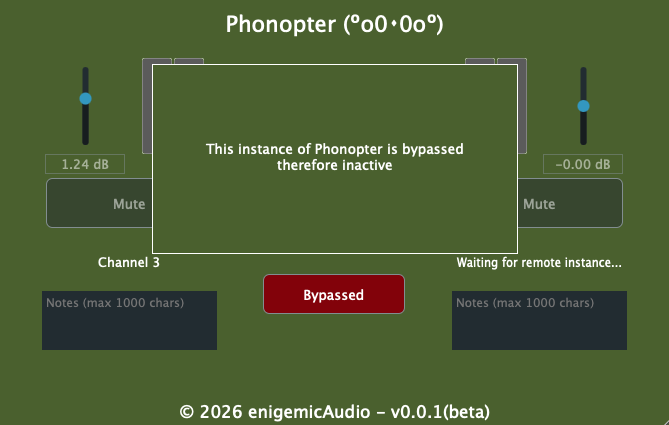
When you bypass, this is the message you’ll see
Suggestions
There will be some graphics in the future, but here’s some ideas in the mean time:
Auditioning wet/dry options of an effect
E.g. with and without compression
If you have enough processing power, just duplicate the track, inserts and all, and bypass the effect you want to compare in one of them. Add Phonopter to one of the tracks
If you’re running low on DSP power and the effect is the last or near-last in the chain, add a pre-fader, post-inserts send to the channel. Add the effect and Phonopter to the aux and original channel
Auditioning two different effects, or settings of the same effect
Same idea, but adding both effects with the settings you want to try
Bugs
| Bug ID | Description | Workaround |
|---|---|---|
| 001-00 | Two meters always appear, regardless of whether the track is mono or stereo | None. Sit tight, I’ll get to it! |
| 001-01 | When an instance changes role to secondary, the remote gain slider on the primary doesn’t reflect the correct gain setting | Move the slider on the primary and the gain parameter will sync |
| 001-03 | Sometimes the remote track name is not updated when roles change, the remote track name shows “Waiting for remote instance…” and inactive instances show the wrong primary and/or secondary in the information box | Sometimes forcing a channel name causes an update, but not always |
| 001-06 | In Logic Pro, the meters freeze when playback is stopped instead of returning to minus infinity dB | None. Still chasing it |
| 001-07 | In Logic Pro, removing and readding an instance to the same channel doesn’t reset the settings and role priority | None. Still chasing it. Just be aware this is how it behaves in LP for now |
Planned Future Updates
These will be prioritised based on user feedback (besides, users may potentially request more enticing features to work on)
- Sync with tempo and meter
- Allow Phonopter to swap mutes without the need to click any buttons, e.g:
- every X bars/beats or seconds
- every time a looped section restarts
- randomly, within a user provided range (e.g. anywhere between 2 and 4 measures)
- Compare more than one pair of tracks a time
- add a UI that sees all instances and allows the user to select which ones will be paired up to toggle mutes
- A gamified version where the user has to guess which track is playing and gets feedback as they try to guess, and they get scores/feedback about how they do. Like Duolingo but without the passive-aggressive pressure
Tested Platforms
As of the latest update in this page, the following combinations of computers and DAWs have been confirmed to work as intended
| Computer | DAWs |
|---|---|
| MBP M1 | Logic Pro 12, Ableton Live Lite 11 (VST3 and AU), Reaper 7 (VST3 and AU) |
| MB Air Intel | Garage Band |
| MBP M4 | Logic Pro 12, Reaper 7 |
Contact
If you need help or have trouble using Phonopter please include the following to help me figure out what’s up, thanks!
- Model of your computer (MBP, MB Air, etc…)
- Processor type (Intel or Mac)
- Mac OS version
- DAW and version
- Phonopter format and version you’re trying to install
- Specific steps you followed
- Screenshots and error messages
The first 3 you can get by clicking the Apple icon on the top left and selecting “About This Mac”
Drop me an email at
phonopter
[that "a" with the circle around it]
enigemic
{dot}
audio
Distribution List
By signing up to this mailing list you’ll only get emails about Phonopter beta testing. I might send a note when the production version launches or new I start testing new plug-ins, but those will be separate lists you’ll be able to opt-in to if you so wish
FAQ
- Why is the current version not in AAX?
- Money 🙂 Avid charge a license fee to allow developers to digitally sign plug-ins that Pro Tools can import. Fingers crossed this test goes well and this (and the following two questions) will change
- Why is this version only for Mac and not Windows?
- You’re not gonna believe this! Yeah, I only have a MacBook so I can’t build and test software that runs on PC at the moment
- What’s up with the UI? 😬
- While I did program for a living for the last 13 years or so, I hadn’t written any C++ (the standard programming language for audio software) since Uni, so trying to make a plug-in that both worked AND looked nice while basically re-learning C++ from the start was quite a lot more than I could handle