Quick reference to delete the old installation:
Open Spotlight search (the default shortcut is Command+Space Bar), type “terminal” and when the following icon is highlighted press Return

In the terminal window, type (or copy/paste) the following command. If you type it, take into account it’s case sensitive
open ~/Library/Audio/Plug-InsYou should get a Finder window where you can navigate to either Components (for AU) and/or VST3. Look for Phonopter.component or Phonopter.vst3, respectively and delete it/them
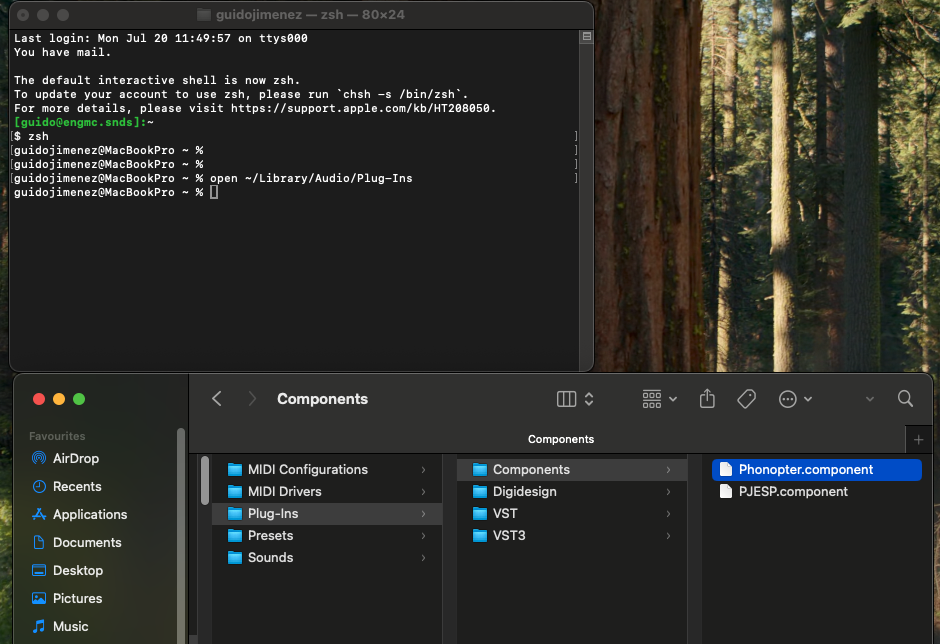
If you can’t find them there, run the following command in terminal (notice there’s no tilde “~” in this one)
open /Library/Audio/Plug-InsThis is the system-wide folder for plug-ins so you’ll see a lot more. Look for Phonopter there and delete
Latest version: 0.0.1
Yes, this is a bit messy. Apple charge a fee to developers so they can digitally sign software that won’t make Mac OS yell in fear. Hopefully this endeavour picks up and this will be better in future versions!
Table of Contents
Download Links
v0.0.1
VST3: Download Link
AU: Download Link
Manual install
Unzip the file and copy the plug-in folder (Phonopter.component or Phonopter.vst3) to your preferred path for plug-in installations. The recommended and default locations for user-installed plug-ins in Mac OS are the following:
VST3:
/Users/{your username}/Library/Audio/Plug-Ins/VST3
AU:
/Users/{your username}/Library/Audio/Plug-Ins/Components
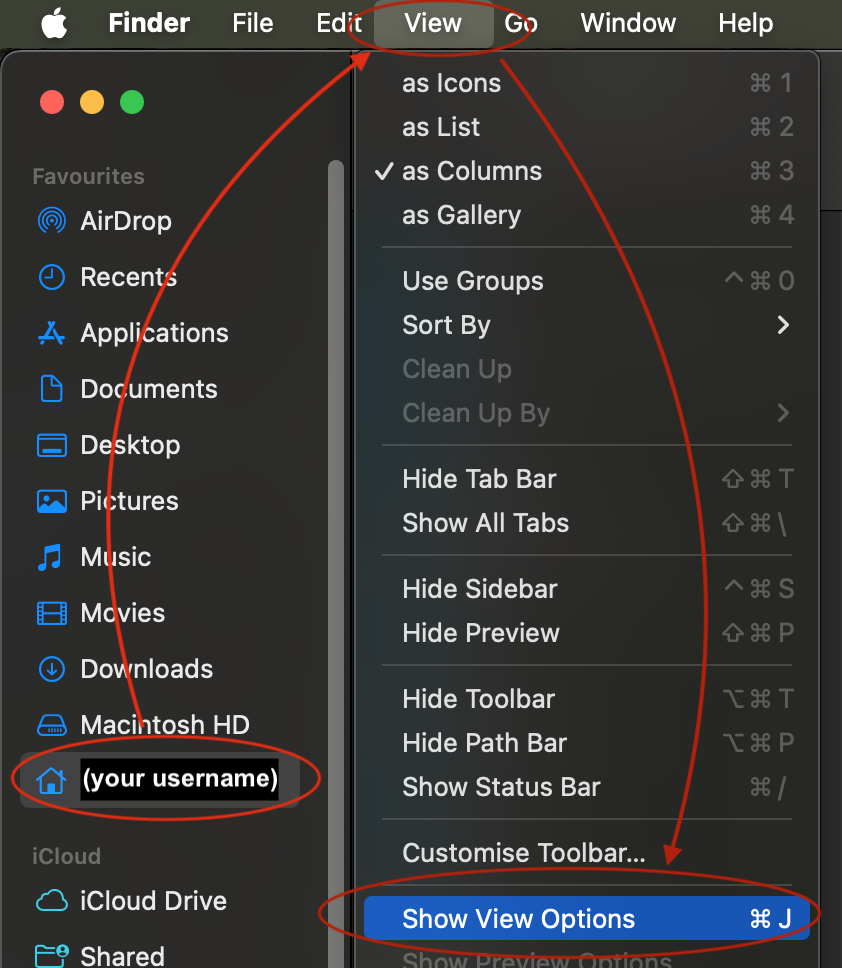
The user’s Library folder is often hidden in Finder so if you can’t see it, open Finder and go to your home folder, then type ⌘J or go to View > Show View Options
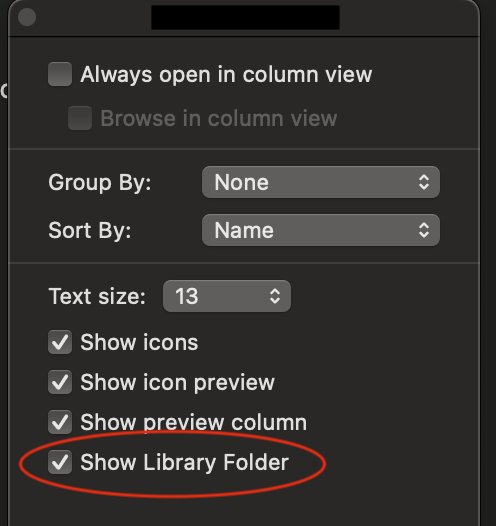
The window you get may show different settings but you should still see the option to toggle “Show Library Folder” on, usually towards the bottom
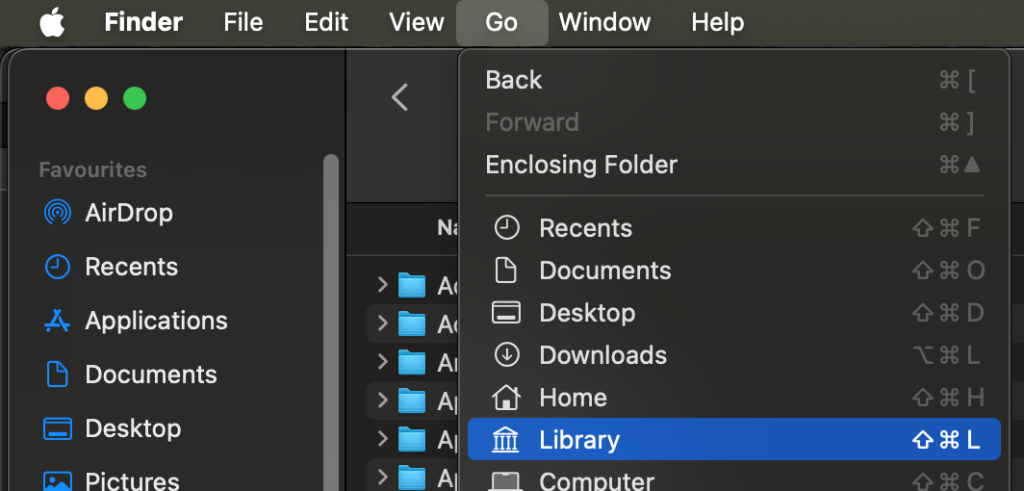
Once you do you should be able to access it by opening Finder then pressing the shortcut ⇧⌘L or alternatively select it from the Finder menu
You should now be able to open a Finder window and navigate to the paths mentioned above to copy the plug-in folders
Mac OS freaks out
Obviously, the mess doesn’t end there. Mac OS will now try to warn you of the inevitable doom that will beset you for having the gall to install software that lacks Big Brother Apple’s blessing
After copying the plug-in to its appropriate location or upon opening your DAW you may get some warnings that look like these
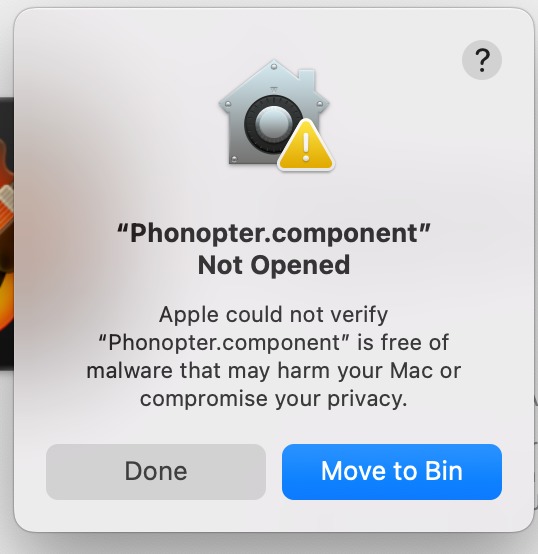
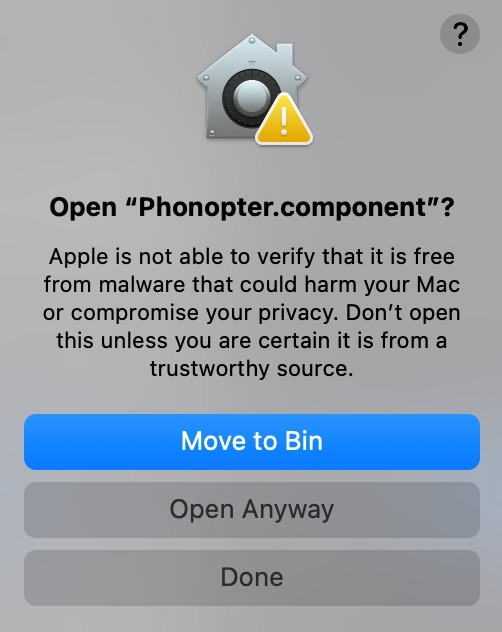
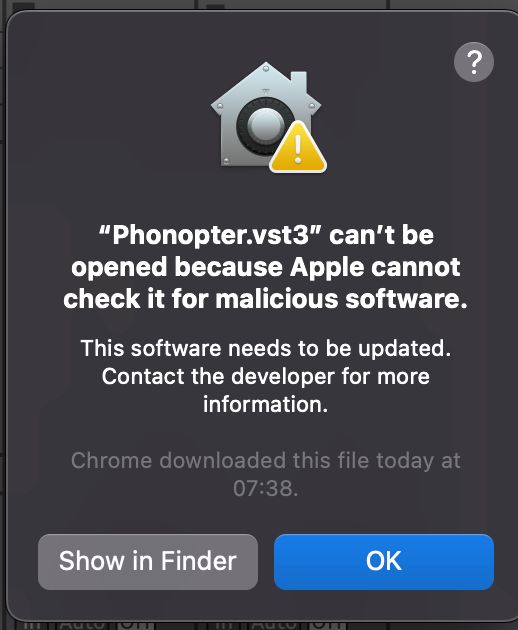
Obviously, don’t choose “Move to Bin” 💔 If you have the option, select “Open Anyway”, or just “OK” or “Done”
Next, if you haven’t done this already, you need to unblock Phonopter in Mac OS System Settings
If you got the message(s) when you opened your DAW, close it back down
Click the Apple icon on your top left corner and select “System Settings…”
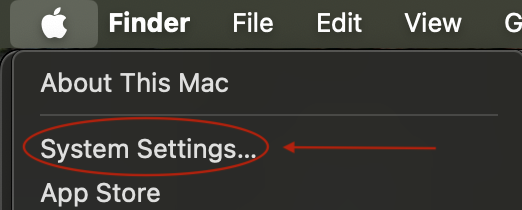
On the left side menu, scroll to “Privacy and Security”, then on the right pane scroll down to “Security” and you should see a notification that Phonopter was blocked. Click “Open Anyway” (you may get a confirmation dialogue box but I forgot to take a screenshot of it)
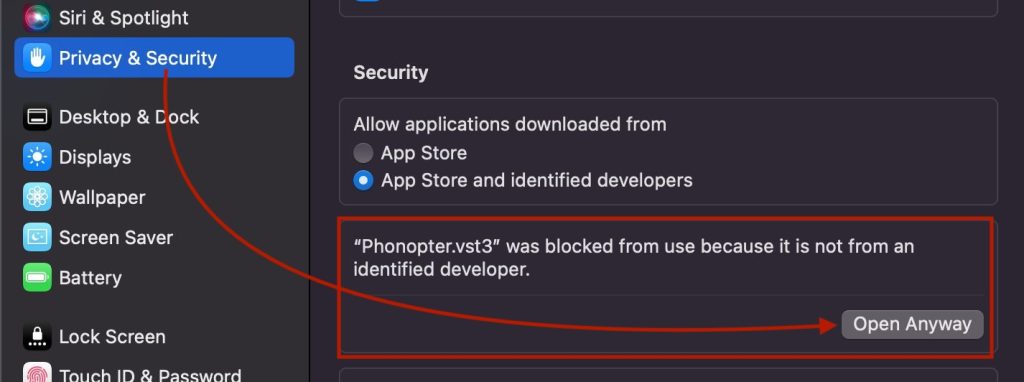
After that, try to open your DAW again. If it notices that it has a new plug-in you may get one more message out of the three above, click “Open Anyway” or the next best option
NOW you should be able to use Phonopter! The user manual can help you with that
Contact
If you need help installing Phonopter please include the following to help me figure out what’s up, thanks!
- Model of your computer (MBP, MB Air, etc…)
- Processor type (Intel or Mac)
- Mac OS version
- DAW and version
- Phonopter format and version you’re trying to install
- Specific steps you followed
- Screenshots and error messages
The first 3 you can get by clicking the Apple icon on the top left and selecting “About This Mac”
Drop me an email at
phonopter
[that "a" with the circle around it]
enigemic
{dot}
audio
Distribution List
By signing up to this mailing list you’ll only get emails about Phonopter beta testing. I might send a note when the production version launches or new I start testing new plug-ins, but those will be separate lists you’ll be able to opt-in to if you so wish